

How to Copy a Project from Your Personal Canva Account to a Canva Pro Class Account
Step 1: Open Canva and Sign In
- Go to Canva and log in to your personal account.
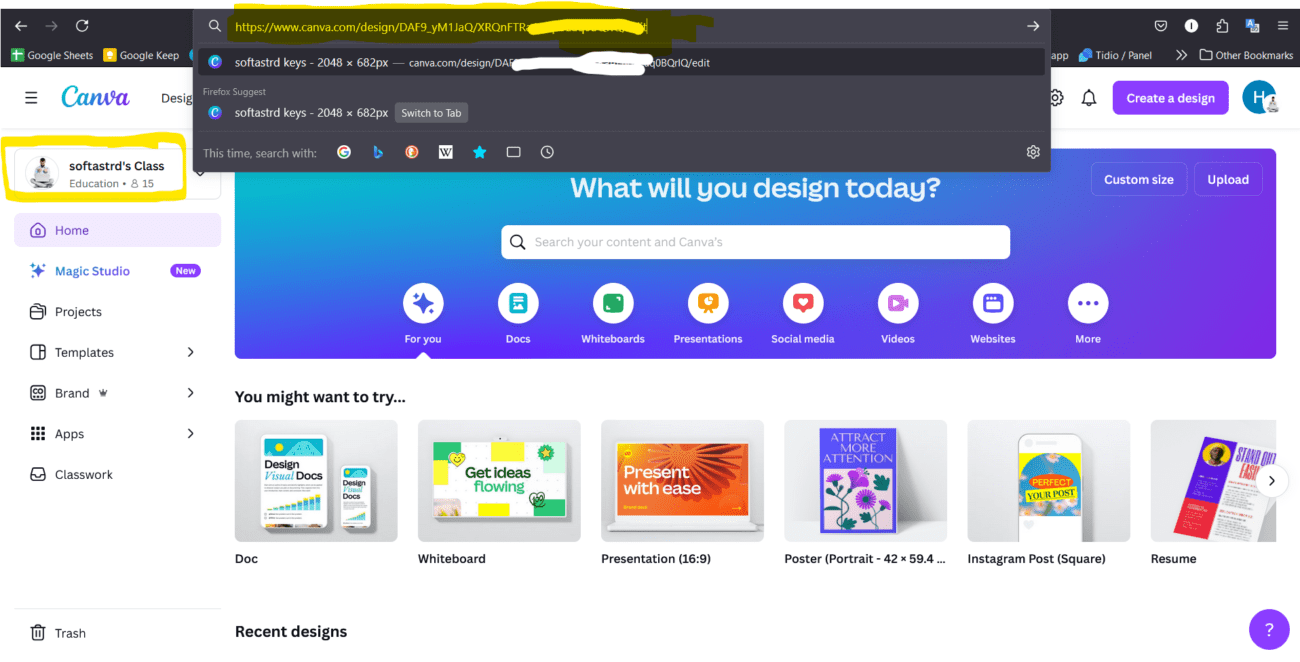
- Make sure you are in your personal account by checking the account name in the top left-hand corner.
Step 2: Select the Project to Copy
- Navigate to the project you wish to copy.
- Open the project by clicking on it.
Step 3: Share the Project
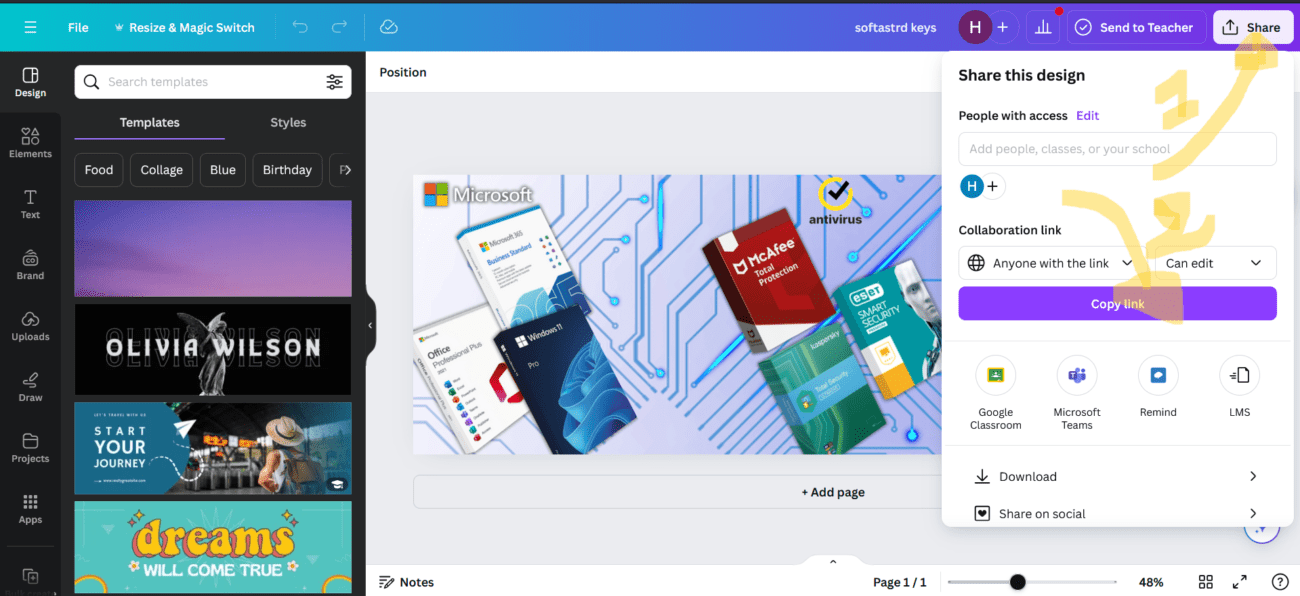
- Click on the button Share in the top right-hand corner of the project page.
- In the sharing options, make sure the setting is “Anyone with the link can edit”.
Step 4: Copy the Link
- Click on Copy link to copy the project link.
Step 5: Switch to Your Canva Pro Class Account
- Click on your profile icon or account name in the top left-hand corner.
- From the drop-down menu, select your Canva Pro class account (e.g. “softastrd's Class”).

Step 6: Open the Project in the Canva Pro Class Account
- Paste the copied link into the address bar of your browser.
- Press Enter to open the project in your Canva Pro class account.
Step 7: Save the Project in the Canva Pro Class Account
- Once the project is open, click on Files in the top left-hand corner.
- Select Create a copy to save the project in your Canva Pro class account.
Conclusion
By following these steps, you can easily copy your project from a personal Canva account to a Canva Pro class account. This allows you to take advantage of the additional functionality and collaboration tools available in the Pro account.