

How to download, install, and activate SQL Server 2022 Standard: a step-by-step guide
Are you looking to harness the power of Microsoft SQL Server 2022 Standard for your projects? This comprehensive guide will walk you through the process of downloading, installing, and activating SQL Server 2022 Standard.
Download SQL Server 2022 Standard ISO from Microsoft
Download the Evaluation Edition: Start by downloading the Evaluation Edition of SQL Server 2022 from Microsoft. here.
Installing SQL Server 2022 Standard
Follow these steps to install SQL Server 2022 Standard on your system:
Step 1: Download SQL Server 2022
Download Microsoft SQL Server 2022 from the official source and run the installation file.
Step 2: Select the type of installation
Select the “Basic” option, then click “Accept” and “Install.”.
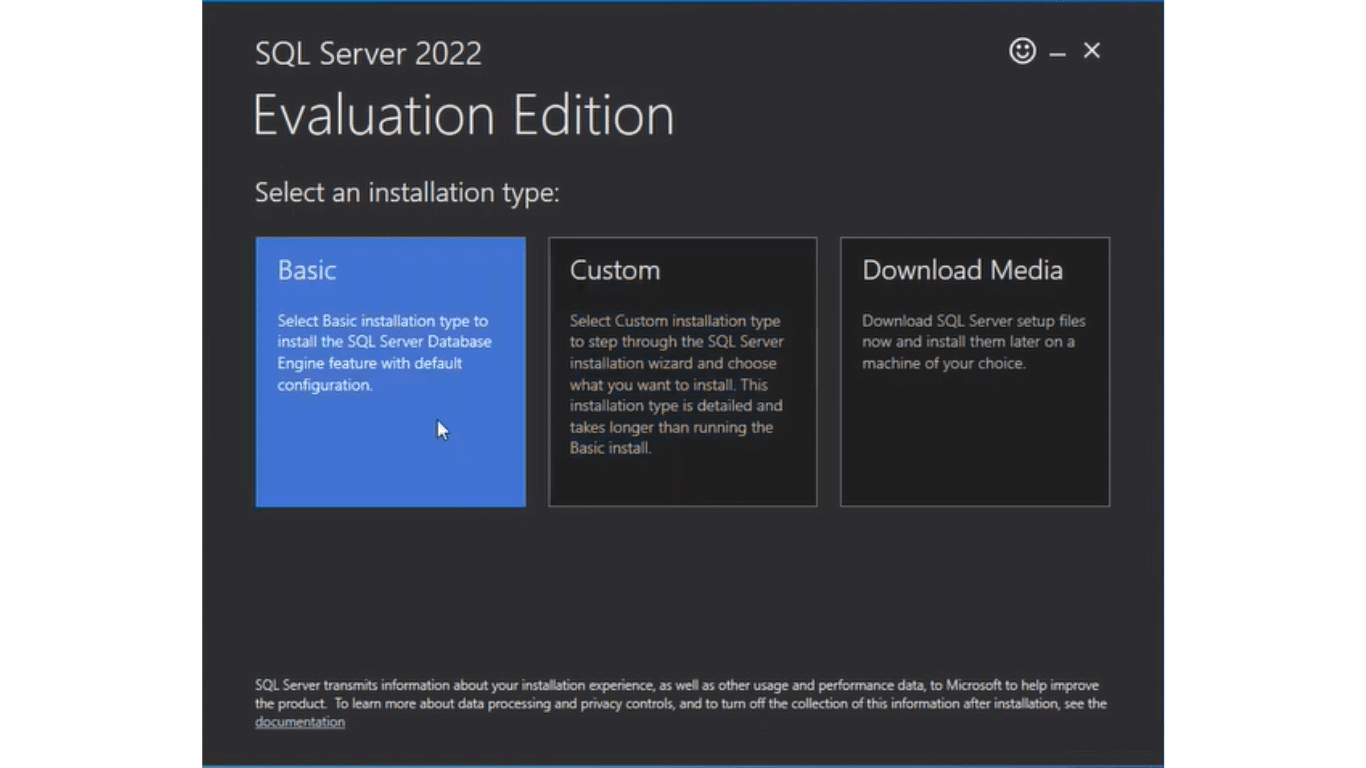
Step 3: Choose the type of installation
In the customization window, go to the “Microsoft Updates” section and uncheck the “Use Microsoft Update to check for updates” box, if desired. Then click “Next.”.
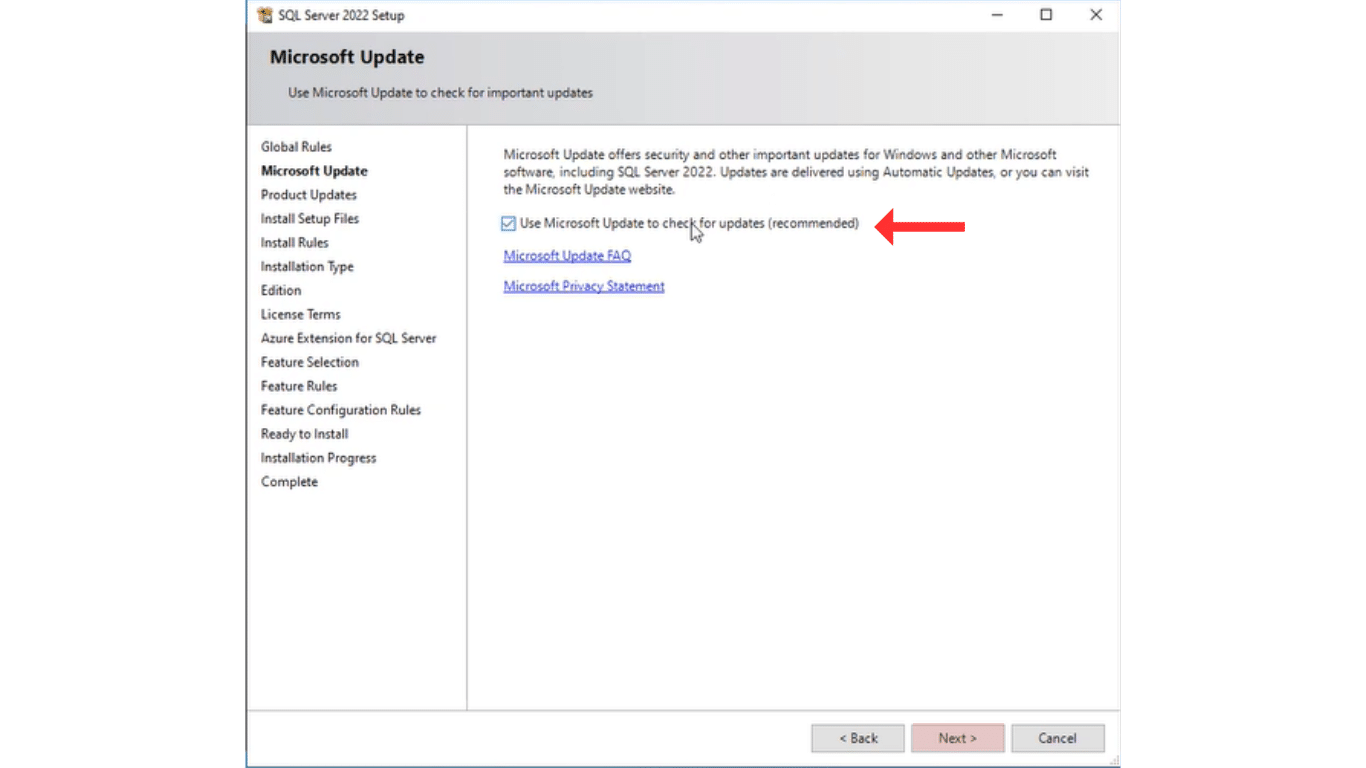
- Click “Next” in the “Installation Rules” section to proceed.
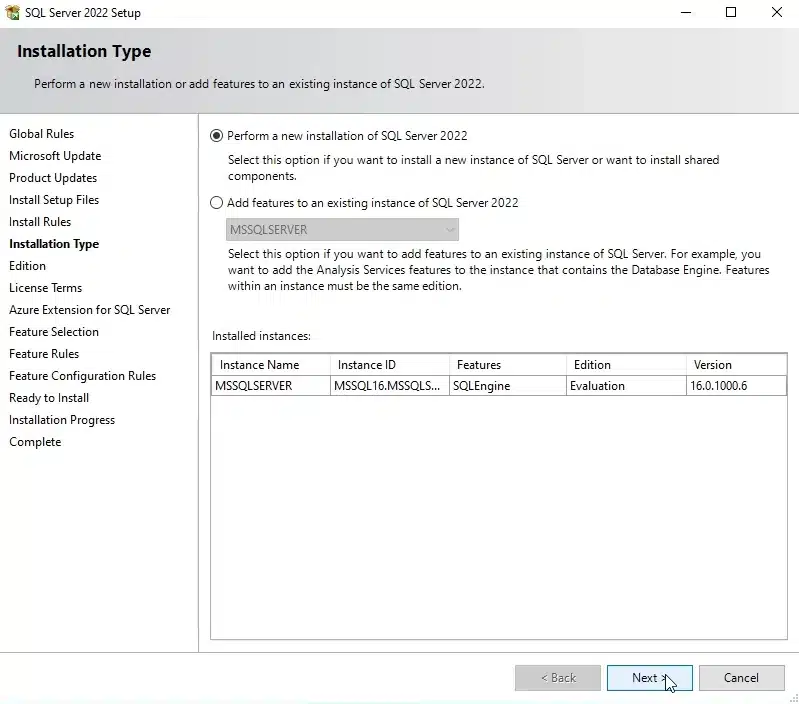
- On the “Installation Type” tab, select “Perform a new installation of SQL 2022.”.
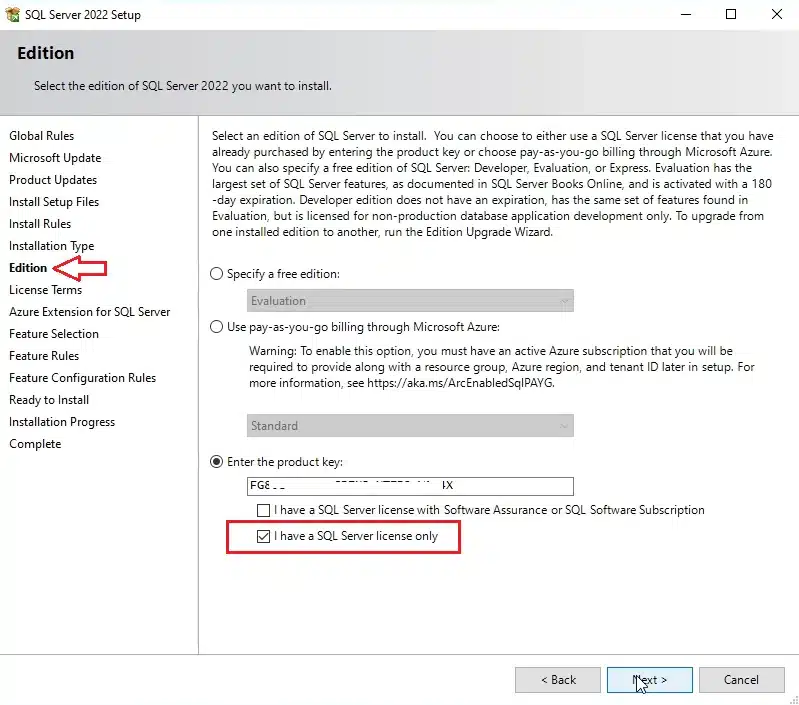
- On the “Edition” tab, select “Enter product key.” Copy and paste the SQL Server 2022 Standard key and select “I only have a SQL Server license,” then click “Next.”.
- Check the box that says “I accept the license terms and privacy policy,” then click “Next” to proceed.
- Uncheck the box for “Azure Extensions for SQL Server” if you do not want this feature. Click “Next” to continue.
- In the “Feature Selection” section, you can choose the features you want to install. Select the features that are relevant to your needs, then click “Next.”.
- In the “Database Engine Configuration” section, select “Add Current User” for simplicity or configure as needed. Click “Next.”.
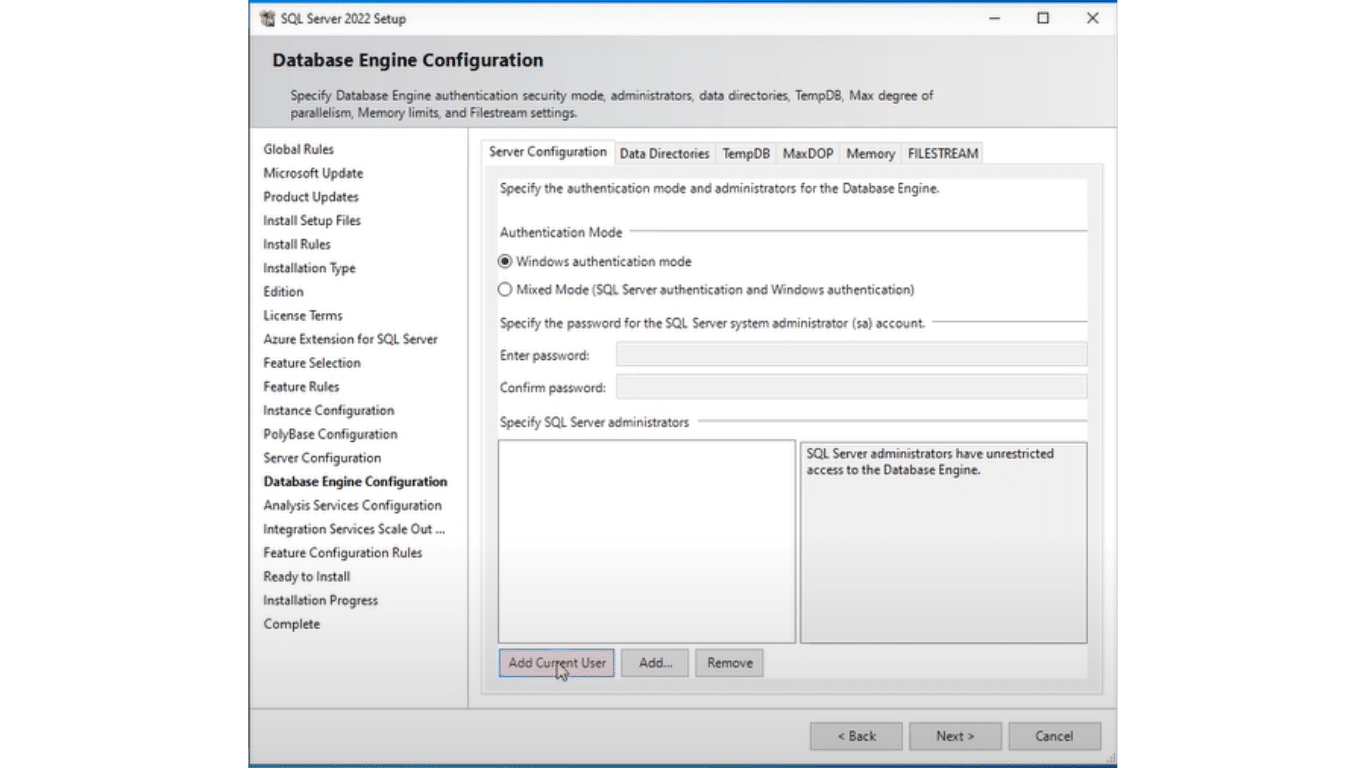
Similarly, in the “Analytics Services Configuration” section, select “Add Current User” or modify the configuration according to your needs. Click “Next.”.
Review the summary of your selections in the “Ready to install” section. If everything looks correct, click “Install” to begin the installation process.
Wait for SQL Server 2022 Standard to install. This may take a while, so please be patient.
Once the installation is complete, you will see a confirmation message. Click “Close” to finish the process.
Step 4: Install SQL Server Management Studio (SSMS)
After completing the installation of SQL Server, we recommend installing SQL Server Management Studio (SSMS) for effective management. Download SSMS here.
Now you're ready to leverage the capabilities of SQL Server 2022 Standard for your projects. Enjoy advanced features and smooth database management!